



Set up passwordless SSH in one command on any Linux or RouterOS device, such as Raspberry Pi, NVIDIA Jetson or MikroTik routers.
Tired of juggling ssh-keygen, ssh-copy-id (missing on Windows) and ~/.ssh/config edits every time you set up a new device?
ssh-keyup handles all three in one interactive session.

Install globally with pip:
pip install ssh-keyup

ssh-keyup   # ready to use anywhere
Tip: If
ssh-keyupis missing or runs an old version after install, new script sits in a folder outside PATH (pip warns about this). Add that folder to PATH, or install with pipx instead:
pipx install ssh-keyup
Or run directly without installing:
git clone https://github.com/Kurokesu/ssh-keyup.git
cd ssh-keyup
python ssh_keyup.py   # Windows
python3 ssh_keyup.py  # Linux
Follow prompts, enter remote password once and you're done. Alias now works in anything that reads ~/.ssh/config:
Terminal:
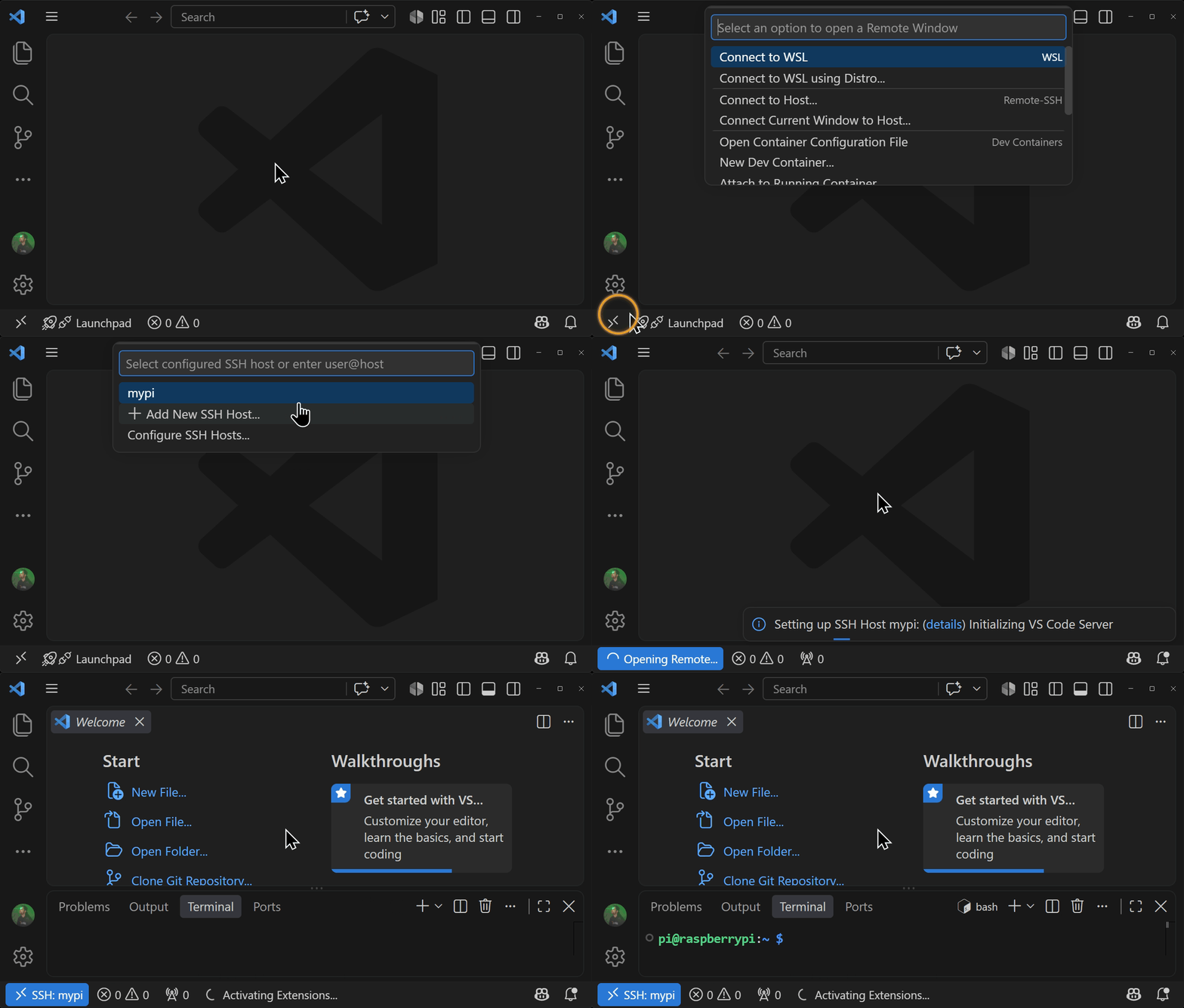
ssh mypi # no password, ever againVSCode: Remote - SSH works out of the box. Press Ctrl+Shift+P, select Remote-SSH: Connect to Host and pick your alias for a full IDE on the device, no password:
ssh-keyup pi@192.168.1.23 mypi        # user, host and alias in one go
ssh-keyup pi@192.168.1.23:2222 mypi   # non-default SSH port
ssh-keyup admin@192.168.88.1 router   # RouterOS, detected automatically
Flags (--host, --user, --alias, --port, --os) work too, see ssh-keyup --help
for host in 192.168.1.10 192.168.1.11 192.168.1.12; do
  ssh-keyup pi@$host
doneList or remove entries ssh-keyup manages:
ssh-keyup --list
ssh-keyup --remove mypi # deletes its key pair tooPython 3.8+ and OpenSSH tools (ssh, ssh-keygen) in PATH.
- Windows 10/11: Python from python.org or Microsoft Store. OpenSSH Client via Settings > Optional Features or Git for Windows.
- Linux:
sudo apt install python3 openssh-client(usually pre-installed).
flowchart LR
    run["ssh-keyup"] --> check["check connection"]
    check --> gen["generate ed25519 key<br/>~/.ssh/id_ed25519_mypi"]
    gen --> deploy["deploy public key<br/>~/.ssh/authorized_keys<br/>or /user/ssh-keys on RouterOS"]
    deploy --> config["update ssh config<br/>~/.ssh/config"]
- Works on Windows OpenSSH, where
ssh-copy-iddoes not exist - Never touches your password. Only the public key is piped over SSH and OpenSSH prompts for the password itself
- One Ed25519 key per device (
~/.ssh/id_ed25519_<alias>), not one key reused everywhere - Deploys in a single SSH session, one password prompt total
- Adds a named entry to
~/.ssh/config, works instantly withssh <alias>and VSCode Remote SSH - Checks host is reachable first, so typos surface before keys exist
- Detects RouterOS and imports the key its way
- Recovers from host key mismatches after a reflash
- Entry management, list or retire devices without leaving stale keys behind
- Zero dependencies, standard library plus system OpenSSH
Usual commands for passwordless SSH from Windows:
ssh-keygen -t ed25519
type $env:USERPROFILE\.ssh\id_ed25519.pub | ssh pi@raspberrypi.local "cat >> ~/.ssh/authorized_keys"
notepad $env:USERPROFILE\.ssh\config   # then add a Host block by hand
Works once. Same key lands on every device, ~/.ssh keeps default permissions that sshd may reject and each new device means another config edit.
ssh-copy-id appends a key to authorized_keys and stops there. Windows OpenSSH does not ship it at all and RouterOS has no authorized_keys to append to.
| ssh-keyup | ssh-copy-id | |
|---|---|---|
| Works on Windows OpenSSH | yes | no |
| Works with RouterOS | yes | no |
| Ed25519 key per device | yes | no |
Sets authorized_keys permissions |
yes | yes |
Writes ~/.ssh/config alias |
yes | no |
| Recovers from changed host key | yes | no |
| Entry management | yes | no |
Reflashing creates a new host key, so next ssh refuses to connect:
@@@@@@@@@@@@@@@@@@@@@@@@@@@@@@@@@@@@@@@@@@@@@@@@@@@@@@@@@@@
@    WARNING: REMOTE HOST IDENTIFICATION HAS CHANGED!     @
@@@@@@@@@@@@@@@@@@@@@@@@@@@@@@@@@@@@@@@@@@@@@@@@@@@@@@@@@@@
IT IS POSSIBLE THAT SOMEONE IS DOING SOMETHING NASTY!
...
Offending ECDSA key in ~/.ssh/known_hosts:3
Host key verification failed.
Run ssh-keyup again. It detects a changed key, shows new fingerprint for confirmation, clears stale known_hosts entry with ssh-keygen -R and redeploys. Usually a reflash is behind it, but this warning can also mean a real man-in-the-middle, so ssh-keyup asks instead of trusting silently.
No. It deletes local key pair and ~/.ssh/config entry. Line in the device's authorized_keys (or /user/ssh-keys entry on RouterOS) stays until removed there.
Any Linux device reachable over SSH: Raspberry Pi, NVIDIA Jetson, Orange Pi, VMs, servers. Any RouterOS 7.12 or newer device, MikroTik routers or CHR alike, is detected from SSH banner and gets its own key import, --os routeros forces it.
By hand on RouterOS 7:
ssh-keygen -t ed25519
scp $env:USERPROFILE\.ssh\id_ed25519.pub admin@192.168.88.1:
ssh admin@192.168.88.1 "/user/ssh-keys/import public-key-file=id_ed25519.pub user=admin"
Works, with two password prompts and the default key shared across devices again. ssh-keyup admin@192.168.88.1 router does it in one session with one prompt, RouterOS is detected from SSH banner. Login user needs policy permission (full group has it) and firmware 7.12 or newer, older RouterOS rejects Ed25519 keys with unable to load key file (wrong format or bad passphrase).
That is the default: once a user has a key, RouterOS stops accepting that user's password over SSH. WinBox and WebFig are unaffected, and password SSH can be turned back on under /ip/ssh.